
I have a confession that still embarrasses me: I once set seven alarms to wake up. Seven. Each one five minutes apart. And I would still manage to sleep through all of them, or worse, turn them off in a half-conscious haze and have zero memory of doing it. My brain had learned to silence alarms without ever waking up.
I tried everything. I moved my phone across the room—I learned to walk in my sleep. I tried apps that made me solve math problems—I got really good at 3×7 while still technically unconscious. I tried light therapy alarms. I tried vibrating pillow pads. Nothing worked. My subconscious had developed immunity to every trick.
Then someone recommended WakeBox. I was skeptical. Another alarm app? I’d already uninstalled a dozen of them. But I was desperate enough to try anything.

After using WakeBox for three weeks now, I haven’t hit snooze once. Not because it’s louder or more annoying. Because it understands something about sleep inertia that other alarm apps ignore. Let me explain what I discovered.
Context and How the App Works
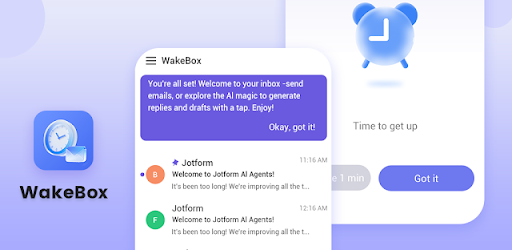
So what exactly is WakeBox? At its simplest, it’s an alarm clock app. But calling it that is like calling a smartphone “a device that makes calls.” The technical architecture behind it is fundamentally different from anything else in the category.
Most alarm apps operate on what I call the volume escalation model. They start quiet and get louder, or they just blast full volume. The assumption is that noise equals wakefulness. But here’s the problem: your brain can habituate to noise. If you hear the same sound every morning, your auditory system literally learns to filter it out during deep sleep. This is why your first alarm wakes you up easily, but by the seventh, you sleep right through it.
WakeBox takes a completely different approach. Instead of relying on sound alone, it uses a multisensory activation sequence. When the alarm triggers, it doesn’t just play a sound. It first vibrates the phone in a specific pattern—not a constant buzz, but a rhythmic pulse that mimics the heartbeat of someone waking naturally. Then, if you don’t respond, it gradually increases screen brightness to simulate dawn. Only after both vibration and light fail does it introduce sound, and even then, the sound is designed to be frequency-shifting—it changes pitch slowly, which your brain can’t habituate to as easily.
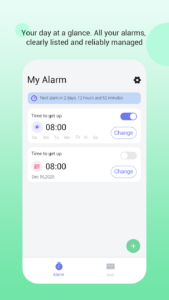
Here’s the internal detail that matters: the app uses your phone’s ambient light sensor and accelerometer data to determine how deeply you’re sleeping. When you set an alarm, you also tell the app your typical bedtime. In the thirty minutes before your alarm, the app analyzes your phone’s movement. If it detects that you’ve been tossing and turning (frequent movement), it assumes you’re in light sleep and keeps the alarm at standard intensity. But if it detects no movement (indicating deep sleep), it starts the multisensory sequence earlier, giving your brain time to transition.
What makes WakeBox different from competitors like Sleep Cycle or Alarmy is its mission-based dismissal system. To turn off the alarm, you don’t just tap a button. You have to complete a small task. But unlike other apps that use simple math or shaking, WakeBox’s tasks are context-aware. In the morning, you might have to scan a QR code you placed in your bathroom (forcing you to get out of bed). Or you might have to take a photo of your coffee maker. The app remembers where you completed the task and uses that location data to verify you’re actually awake.
The Definitive Guide: How to Actually Wake Up
I spent my first week using WakeBox the wrong way. I set it up quickly, picked a random task, and expected magic. It took me several days to realize that the app requires a bit of setup to work properly. Here’s what I learned.
Step 1: The QR Code Strategy Is Non-Negotiable
The app offers several “mission” types: math problems, memory games, QR scanning, photo tasks, and step counting. In my testing, QR scanning is by far the most effective.
Here’s why. Math problems and memory games work for about a week, but your brain adapts. You start solving them faster, eventually doing them without fully waking. But a QR code in another room forces physical movement. By the time you’ve walked to the bathroom or kitchen, your body has started producing cortisol, the natural wake-up hormone. The act of standing up and walking is often enough to break sleep inertia.
I printed the QR code and taped it to my bathroom mirror. The first morning, I groggily walked to the bathroom, scanned it, and was annoyed. But I was awake. By the third morning, I was waking up before the alarm, anticipating the walk. My body had started associating the bathroom trip with the start of the day.
The advanced tip here: use multiple QR codes on rotation. The app lets you set up a sequence. I have one on my bathroom mirror for weekdays and one on my coffee maker for weekends. The novelty prevents your brain from automating the process.
Step 2: Configure the Pre-Alarm Window
Most users skip the “sleep analysis” settings entirely. Don’t. This is where WakeBox’s intelligence lives.
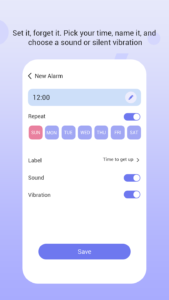
In the settings, you can set a pre-alarm window—typically 30 minutes before your target wake time. During this window, the app monitors your movement via the accelerometer. If you’re already moving (in light sleep), the alarm goes off at the exact set time. If you’re completely still (in deep sleep), the app starts the multisensory sequence earlier, sometimes up to 20 minutes before your set time.
I was skeptical about waking up early. But here’s what happens internally: the vibration pattern is designed to mimic the sensation of being gently shaken. It doesn’t startle you. It gradually brings you from deep sleep to light sleep without a cortisol spike. By the time the actual alarm sound plays (if it even needs to), you’re already conscious. I’ve had mornings where the vibration alone woke me, and I turned off the alarm before any sound played.
Step 3: The Light Ramp Is Underrated
WakeBox includes a screen brightness ramp that gradually increases over 10–15 minutes. Most users turn this off because they think it drains battery or because they sleep with their phone face-down.
Here’s what I discovered: the light ramp is actually more effective than the sound for certain sleep stages. Your eyes have light-sensitive cells that don’t contribute to vision but do regulate your circadian rhythm. The gradual increase in screen brightness signals to your brain that it’s time to stop producing melatonin. Even if you sleep with your phone face-down, the reflected light off nearby surfaces is often enough to trigger this response.
I tested this by placing my phone on a bedside table with the screen facing the ceiling. The light ramp bounced off the white ceiling, creating a soft dawn effect in the room. It wasn’t bright enough to disturb my partner, but it was enough to gently wake me before the sound started.
Step 4: Customize the Vibration Pattern
This is a hidden feature buried in the advanced settings. You can create custom vibration patterns instead of using the default heartbeat rhythm.
I recorded my own pattern by tapping the screen. I made a pattern that mimics someone tapping my shoulder—three short pulses, a pause, three more short pulses. This personalization matters because your brain recognizes patterns it associates with human touch, which is a more natural waking stimulus than a mechanical buzz.
The app saves this pattern and applies it during the pre-alarm window. It’s a small detail, but it made the waking process feel less like being assaulted by a machine and more like being gently roused by a person.
Step 5: The Backup Feature Nobody Uses
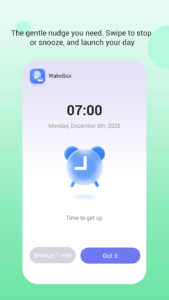
In the mission settings, there’s an option called “emergency backup.” If you fail to complete the mission within a certain time (default is five minutes), the app escalates. It increases volume, changes to a different sound frequency, and sends a notification to a designated “emergency contact.”
I set my partner as the emergency contact. I’ve only triggered it once—on a morning after a late night when I literally fell back asleep standing in the bathroom. She texted me “WAKE UP” and that did it. Having that accountability layer changed my relationship with the alarm. I stopped treating it as something I could ignore.
Honest Pros and Cons
Pros
-
Multisensory approach actually works. The combination of vibration, light, and frequency-shifting sound addresses the problem of habituation that single-sensory alarms suffer from.
-
No ads or subscriptions. According to the Google Play listing, WakeBox is a paid app with no in-app purchases or ads. You pay once, you own it. This is increasingly rare for alarm apps.
-
Privacy-conscious. The app collects no personal data and doesn’t share anything with third parties. Sleep data stays on your device.
-
Customization depth. From vibration patterns to mission types to pre-alarm windows, the level of control is unusual for this category.
-
Offline functionality. The app works entirely offline after installation. No internet required for alarms to function.
Cons
-
Paid upfront. There’s no free version to test. You have to pay to even see if it works for you. For some users, this is a barrier.
-
Learning curve. The settings are extensive. Users who just want a simple alarm might feel overwhelmed. I spent about twenty minutes configuring everything.
-
No smartwatch integration. The app relies on your phone’s sensors. If you prefer to wear a smartwatch for sleep tracking, the data doesn’t integrate. You’re using two separate systems.
-
Battery drain from light ramp. The screen brightness ramp does use more battery than a standard alarm. If you forget to plug in overnight, you might wake up to a low battery notification.
-
QR code printing required. The most effective mission type requires printing. For users without a printer, this is inconvenient.
Expert Verdict
Is WakeBox worth the purchase? Yes—if you’ve tried everything else and still struggle to wake up.
If you’re a chronic snoozer who has habituated to traditional alarms, this app addresses the root cause of that problem. The multisensory approach, combined with mission-based dismissal and sleep stage monitoring, creates a system that’s genuinely different from the dozens of other alarm apps on the market. It’s not louder or more annoying—it’s smarter.
If you’re a light sleeper who wakes easily, this app is probably overkill. A standard alarm or even your phone’s built-in clock is likely sufficient. The complexity and upfront cost aren’t justified for someone who doesn’t have a genuine waking problem.
For me, WakeBox solved a problem I’d been fighting for years. The first morning I woke up without hitting snooze—actually woke up, not dragged myself out of bed—I felt something I hadn’t felt in a long time: control over my mornings. The app didn’t just wake me. It changed my relationship with the first hour of my day.
Your Turn
I’m curious—have you tried any unusual methods to beat the snooze button? Did WakeBox work for you, or did you find a different approach that clicked?
Drop a comment below and share your morning struggle. And if you’re looking for other apps that help build better habits, check out my list of productivity apps that actually respect your time—I’ve tested dozens so you don’t have to.
Leave a Reply