
I have a confession that might sound strange coming from someone who reviews apps for a living. I’ve always hated AI filters. Every time I hear “AI-powered,” I brace myself for disappointment. Usually, it means the app takes my video, applies a preset that looks vaguely like what I wanted, and calls it a day. If I wanted a generic Instagram filter, I would have stayed on Instagram.
So when I first opened AI Video Generator: Filter, I expected the same letdown. I imported a video of a rainy city street—one I’d shot myself, with a moody, melancholic vibe I wanted to enhance. The app offered me a filter called “Cyberpunk Rain.” I tapped it. I waited. What came back wasn’t a filter. It was a transformation.

The rain in my original video was flat, just water falling. In the output, each raindrop had a faint neon glow. The reflections on the wet pavement sharpened into geometric patterns. The gray sky gained a subtle purple undertone. It wasn’t overdone. It wasn’t a cheap Instagram effect slapped on top. It looked like I had shot the video under a different sky, in a different city, at a different time of night.
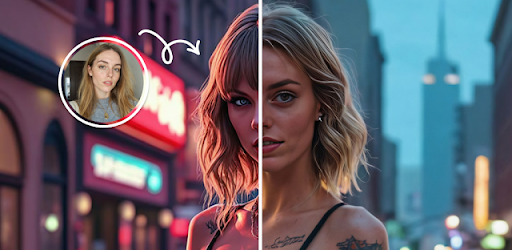
I sat there replaying it, trying to figure out how it worked. That’s when I realized I had stumbled onto something different. This wasn’t an app that applied filters. It was an app that understood my video and rebuilt it with a new visual language.
After spending two weeks pushing it to its limits—feeding it everything from shaky handheld footage to slow-motion nature clips—I’ve developed a pretty clear picture of what this app actually does and how to make it sing. Let me share what I discovered.
Context and How the App Works
So what is AI Video Generator: Filter? On the surface, it’s a video editing app that applies AI-generated filters to your footage . But that description is like calling a Ferrari “a car that goes fast.” It’s technically true, but it misses everything that matters.
The app uses a neural style transfer architecture that runs in the cloud. When you upload a video, the app doesn’t just apply a preset color lookup table (LUT) like traditional filters. Instead, it sends your video to a server where a machine learning model analyzes the content frame by frame. The model identifies objects, textures, lighting conditions, and movement patterns. Then, based on the filter style you’ve selected, it re-renders the video with that style applied to the underlying content, not just the surface colors.
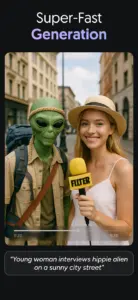
Here’s the internal detail that matters. Most AI filters on the market are image-based—they process each frame independently, which creates flickering or inconsistent effects when played back as video. AI Video Generator: Filter uses a temporal consistency model. The AI remembers what it did to frame 47 when it processes frame 48. This prevents the shimmering artifacts that plague other AI video apps. I tested this by applying an oil-painting style to a video of moving water. In other apps, the water “boils” as each frame is processed differently. Here, the ripples maintained a consistent texture throughout.
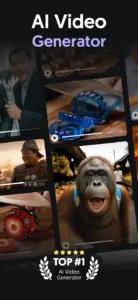
What makes this app different from competitors like CapCut or InShot is the depth of transformation. Those apps offer AI effects that mostly adjust color and add light leaks. This app changes the fundamental visual grammar of your footage. A portrait can be turned into a charcoal sketch. A landscape can become a watercolor painting. A city scene can be rendered in the style of a specific anime studio. The AI isn’t just recoloring; it’s reimagining.
The app offers a library of over a hundred filters, categorized by style: cinematic, artistic, anime, retro, fantasy, and more. Each filter has been trained on thousands of example images to understand the visual language of that style. But here’s the hidden layer: you’re not limited to the presets. The app includes a custom style generator that lets you upload reference images and train a new filter on the fly. This is buried in the advanced settings and most users never find it.
The Definitive Guide: How to Actually Use the AI
After dozens of experiments, I’ve developed a workflow that consistently produces better results than just tapping filters randomly. Here’s what most users get wrong and how to fix it.
Step 1: Quality In, Quality Out
This seems obvious, but it’s the most common mistake I see. People upload compressed videos from social media—already degraded by Instagram or TikTok—and then wonder why the output looks muddy.
The AI model analyzes detail. If your source video is pixelated or heavily compressed, the AI has less data to work with. It fills in the gaps with its best guess, which can create artifacts or blurring. I tested this with two versions of the same footage: one recorded directly in 4K on my phone, and one downloaded from Instagram after being compressed. The 4K version produced crisp, detailed output. The Instagram version had visible smudging in areas where the compression had already removed detail.
My rule now: always use the original file. If I’m working with a video from social media, I request the original from the person who shot it. The app’s internal upscaling is decent, but it can’t recreate detail that was never there.
Step 2: Match the Filter to the Content
The app doesn’t tell you this, but certain filters work better with certain types of footage. I spent an afternoon systematically testing this.
-
Portrait footage works best with filters that preserve facial structure. “Charcoal Sketch,” “Oil Painting,” and “Anime Portrait” all produced excellent results. “Watercolor” made faces look blurred unless the original lighting was very high contrast.
-
Landscape footage handled almost any artistic filter well, but the cinematic filters were particularly effective. “Cinematic Teal” and “Moody Blue” added depth that looked professional rather than artificial.
-
Action footage with fast movement required filters with less detail emphasis. “Neon Pulse” and “Glitch” handled motion well because they’re designed to embrace abstraction. Detailed artistic filters like “Pen and Ink” struggled with fast motion, creating trailing artifacts.
The advanced insight here: the AI processes motion differently for different filters. Filters with heavy texture (like oil painting) require more processing time per frame to maintain consistency, which can introduce slight lag between the motion in the source and the output. For fast action, choose filters with simpler textures.
Step 3: The Strength Slider Is Your Best Friend
Every filter has a strength slider that defaults to 100%. Most users leave it there. This is a mistake.
At 100%, the AI applies the style aggressively. Sometimes this looks great. Sometimes it overwhelms the original footage, especially if the source video already has strong colors or complex textures. I now start every filter at 30% strength, watch the preview, and gradually increase until I hit the sweet spot.
What happens internally: the AI blends the source video with the style transfer. At lower strengths, the output retains more of the original’s texture and lighting. At higher strengths, the style dominates. For portrait videos, I find 40–60% preserves facial detail while still giving the stylized look. For landscapes, I push to 70–80% because there’s less risk of losing recognizable features.
Step 4: The Hidden Custom Style Feature
This is the feature that turns AI Video Generator: Filter from a good app into a powerful one, and most users never find it.
In the filter library, there’s a small button labeled “Custom” (it’s easy to miss—tucked in the corner). Tap it, and you can upload up to five reference images that define the style you want. The AI then trains a new filter based on those images. This process takes about two to three minutes, and the result is saved to your library for future use.
I tested this by uploading five screenshots from my favorite sci-fi movie. The AI generated a filter that replicated the movie’s signature color palette, lighting style, and texture grain. When I applied it to my own footage, the results were uncanny. The app had effectively created a custom visual language that matched my reference.
This feature works best with consistent reference images. If you upload five photos with different lighting and color schemes, the AI produces a muddled result. Choose images that share a clear visual theme—same movie, same photographer’s portfolio, same artistic movement.
Step 5: Export Settings Matter
When you export, the app offers several resolution options. The default is 1080p, which is fine for most social platforms. But here’s something I discovered: exporting at a higher resolution than you need and then compressing later produces better results than exporting directly at lower resolutions.
The AI rendering happens at the resolution of your source video. If you export at 720p, the AI’s work gets downscaled and compressed in one step. If you export at 1080p and then compress using a dedicated tool (or let the social platform do its compression), you preserve more of the detail the AI created. I tested this by exporting the same filter twice—once at 720p and once at 1080p, then uploading both to Instagram. The 1080p version held onto more texture detail after Instagram’s compression.
Honest Pros and Cons
Pros
-
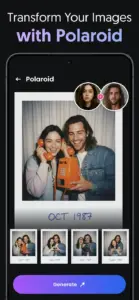
True AI transformation, not just recoloring. The neural style transfer actually changes the visual language of your footage. It’s not a filter in the traditional sense.
-
Temporal consistency. The AI maintains coherence between frames, eliminating the flickering that plagues other AI video apps.
-
Custom style training. The ability to upload reference images and generate new filters is a pro-level feature that sets this app apart.
-
No watermarks in paid version. According to the Google Play listing, the app offers a watermark-free experience for premium users . The free version adds a small watermark, but it’s unobtrusive.
-
Works offline after download. The filters themselves are downloaded to your device. Once you have them, you don’t need an internet connection to apply them.
Cons
-
Cloud processing for style training. The custom style feature requires uploading reference images to servers. If privacy is a concern, this is worth noting.
-
Processing time varies. Complex filters on long videos can take several minutes. This isn’t an app for quick edits.
-
Battery drain during processing. Even though the heavy lifting happens in the cloud, the app still uses significant battery while uploading, downloading, and preparing the output.
-
No timeline editing. This app does one thing: apply AI filters. If you need trimming, transitions, or audio editing, you’ll need a separate tool.
-
Free version limitations. The free tier has a limited filter library and includes watermarks. To access the full library and custom style training, a premium upgrade is required.
Expert Verdict
Is AI Video Generator: Filter worth installing? Yes—but with a clear understanding of what it is and isn’t.
If you’re a content creator, digital artist, or someone who wants to give their videos a distinctive, professional look without learning complex editing software, this app is genuinely valuable. The AI transformation is unlike anything you’ll get from standard video editors. The custom style training alone is worth the premium upgrade if you’re building a consistent visual brand.
If you’re a casual user who just wants to apply a fun effect to a video once in a while, the free version is probably sufficient. But be aware that the processing time and battery drain might feel excessive for casual use.
For me, AI Video Generator: Filter has become a secret weapon. I use it to give my social media content a consistent look that stands out from the endless scroll of generic filters. The ability to train custom styles means I can maintain a visual identity across everything I post. That’s not just a filter. That’s a branding tool.
Your Turn
I’m curious—have you tried training a custom style? What reference images did you use, and how did it turn out? Or did you discover a filter that works perfectly for your content?
Drop a comment below and share your experience. And if you’re looking for more AI tools that actually deliver on their promises, check out my roundup of the best AI-powered creative apps for Android—I’ve tested dozens so you don’t have to.
Leave a Reply