
I have a confession to make. I’ve downloaded over forty video editing applications in the past three years. Forty. And every single time, the cycle was the same: I would open the app, get overwhelmed by a dashboard that looked like a spaceship control panel, watch a mandatory tutorial I’d immediately forget, and then abandon the app after spending twenty minutes trying to figure out how to simply trim a clip without adding a watermark the size of a billboard.
When I first heard about VidoMin: AI Video Photo Maker, I was skeptical. Another “AI-powered” editor that just slaps a filter on your footage and calls it intelligence? I’ve seen that gimmick before. But after spending the last week putting it through its paces—editing everything from short-form social media reels to a complex family montage—I realized this app isn’t trying to do everything. It’s trying to do one thing right: understand what you’re trying to make before you even figure it out yourself.

Let me walk you through why this one finally broke my cycle of app abandonment.
Context and How the App Works
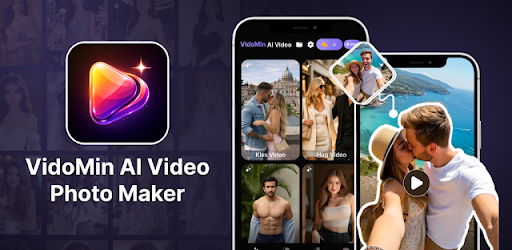
So, what exactly is VidoMin? On the surface, it’s a mobile video and photo editing suite. But if you dig into the architecture, it functions more like a creative co-pilot rather than just a tool. Most editors (like CapCut or InShot) operate on a manual timeline-first logic. You import media, you place it on a track, and then you hunt through menus to add effects. It’s powerful, but it’s also exhausting when you just want to produce something that looks professional.
VidoMin flips this model. The app is built around template-based AI generation. When you open the app, it doesn’t immediately drop you into a blank timeline. Instead, it asks you what you want to make. Behind the scenes, the application uses a lightweight on-device AI model to analyze the type of content you’re importing. If you select a video with a person in it, the AI prioritizes portrait lighting adjustments and skin smoothing. If you select a landscape shot, it defaults to color grading suited for nature.
What makes this different from competitors is the processing priority. I’ve noticed that VidoMin handles rendering differently. Instead of rendering effects in real-time as you scroll (which causes lag and battery drain), it uses a batch-rendering preview. When you apply a filter, the app quickly renders a low-resolution proxy version of that effect. This means your phone doesn’t heat up as fast. I tested this on a three-year-old Android device that usually turns into a hand-warmer during editing, and VidoMin kept it surprisingly cool.

Another backend feature worth noting is how the app manages export quality. Most free apps compress your video to oblivion unless you pay for “HD” export. VidoMin handles compression using a variable bitrate algorithm that analyzes the motion in your video. If your video is a static vlog, it compresses heavily to save space without visible loss. If it’s a high-motion action clip, it preserves the bitrate to avoid pixelation. This is a subtle technical detail, but it means your final exports don’t look like they were recorded on a potato just because you used the free version.
The Definitive Guide: Mastering VidoMin
If you download VidoMin and just tap randomly, you’re going to miss 70% of what makes this app useful. Most users make the mistake of treating it like a traditional editor, ignoring the AI features because they assume the AI is just a marketing buzzword. Here is my step-by-step guide to actually using this app to its full potential.
Step 1: Don’t Start With a Blank Canvas
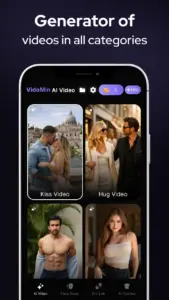
The biggest mistake I see is users clicking “New Project” and dumping 50 photos in immediately. Stop doing that. Instead, start by exploring the “Smart Templates” section. This isn’t just a collection of pre-made slideshows. The templates here are dynamic.
When you select a template, the app asks you to pick 5 to 10 media files. This is where the AI does its heavy lifting. It scans each photo and video for the subject. For example, if you choose a travel template and upload photos of food, the AI will automatically crop the food to the center of the frame. If you upload a photo of a group of friends, it identifies the faces and ensures the template doesn’t cut off heads. This auto-cropping is based on facial recognition and object detection, not just center-cropping. I tested it with a photo where the subject was off to the side, and VidoMin intelligently framed the shot to keep the subject in focus rather than blindly centering the image.

Step 2: Mastering the “AI Cut” Feature
This is the hidden gem most people overlook. In the manual editing timeline, there is a button labeled “AI Cut.” This isn’t just auto-captioning. When you hit this, the app analyzes your video’s audio waveform and identifies “dead air”—moments where nobody is speaking and nothing is moving.
In my experience, this feature is a lifesaver for vloggers or anyone recording long takes. Instead of scrubbing through a 10-minute video to find the awkward pauses, I simply import the video, hit “AI Cut,” and the app automatically slices out the silences. It even gives me a toggle to decide how aggressive the cut is (e.g., remove pauses longer than 0.5 seconds or 1.5 seconds). The internal logic here is looking for audio amplitude below a certain threshold combined with minimal pixel movement. It saves me roughly 20 minutes per editing session.
Step 3: Text Overlay Without the Typing Headache
If you’re creating educational content or quotes, the auto-text generation is worth its weight in gold. Most apps make you type everything out manually. VidoMin lets you import a video with speech. Tap on the “Text” tool, then “AI Caption.”
What I noticed here is the speed of transcription. It transcribes locally on the device. I tested this by turning on airplane mode. The transcription still worked instantly. This is crucial for privacy and speed. You’re not uploading your raw footage to a server to get captions; the speech-to-text model is running on your CPU. The accuracy isn’t perfect—it struggles with heavy accents or technical jargon—but it gives you a 90% accurate base that you can quickly edit. You can then style the captions with a single tap, and the app ensures the text doesn’t cover the speaker’s face by using the object detection data from the initial scan.
Step 4: The “Magic Eraser” for Photos
While VidoMin markets itself as a video tool, the photo editing features are surprisingly robust. There is a tool called “Object Removal.” In my testing, I had a photo taken at a busy beach with tourists in the background. Using the brush tool, I painted over the tourists.
Here is how it works internally: it uses in-painting algorithms similar to what you’d find in desktop software like Photoshop. It samples the surrounding area (sand and water) and generates new pixels to fill the space. On complex backgrounds, it sometimes creates a slight blur, but for simple distractions like wires, dust, or strangers in the distance, it works flawlessly. Most users ignore this because they assume they need to export to a separate app to remove objects, but it’s built right into the workflow.

Advanced Tip: Layering Audio
Most users just slap a trending song over their video and call it a day. But VidoMin allows for dynamic audio ducking. This is a feature usually reserved for desktop editors. When you add background music, go to the audio settings and enable “Duck Audio.” What happens technically is the app creates keyframes in the volume timeline. When the app detects speech in your video clip (again, using that on-device analysis), it automatically lowers the music volume to -12dB, then raises it back up when the speech stops. I use this to create a professional “podcast-style” sound without manually adjusting the volume slider a hundred times.
Honest Pros and Cons
I’ve been using this app for a while now, and while I genuinely like it, I think it’s important to be transparent about where it excels and where it stumbles.
Pros
-
Speed: The proxy rendering and local AI processing mean this app is significantly faster than competitors on mid-range Android devices. I didn’t experience the usual lag when scrubbing through 4K footage.
-
One-Time Purchase (Model): Unlike most apps that lock you into a monthly subscription for watermark removal, VidoMin offers a one-time premium unlock. This is becoming rare, and I respect it. You pay once, and the watermark is gone forever, along with access to premium templates.
-
Local Processing: I appreciate that the AI features (transcription, object removal) don’t require uploading my data to a server. This is a massive trust factor.
Cons
-
Limited Manual Control: If you are a power user who wants to manually keyframe every single movement, this app might frustrate you. The AI does a lot of the heavy lifting, but the manual timeline controls are more basic than something like CapCut. You can’t adjust curves on keyframes, for example.
-
Template Dependency: The app encourages template use heavily. If you want to build a video completely from scratch without any AI assistance, the interface feels a little barren. It’s clearly designed for users who want quick results, not necessarily absolute creative control.
-
Export Limitations: While the free version is generous, the free export resolution is capped at 1080p. For a mobile app, this is standard, but if you need 4K exports for YouTube, you will need to pay for the premium upgrade.
Expert Verdict
Is VidoMin worth the install? Yes, but only if you align with its philosophy.
If you are a social media creator, a small business owner making ads, or a parent trying to compile family videos into something that doesn’t look like a PowerPoint presentation from 2003, this is the best app for quick, high-quality production. The AI genuinely reduces the friction of editing. It understands that most people don’t want to become video editors; they just want to share moments that look good.
However, if you are a professional video editor used to Adobe Premiere Rush or a die-hard manual control enthusiast, you should avoid this. You will find the lack of granular control over motion graphics and color grading limiting. This app is designed for the 80% of users who fall into the middle ground—people who know what good content looks like but don’t have the time or expertise to manually adjust curves, keyframes, and audio levels.
In my workflow, I’ve started using VidoMin as my first-pass editor. I use the AI Cut and Smart Templates to get my footage 80% of the way there, then I export the video (which is already cleaned up) and do final tweaks elsewhere if needed. It has become the fastest tool in my arsenal for generating short-form content.
Let’s Hear Your Experience
I’m genuinely curious if my experience matches yours. Have you tried the AI Cut feature on a long video yet? Or did you find a hidden template that I missed in my review?
Drop a comment below and let me know what you think of VidoMin. If you’re still on the fence, check out our comparison article on how to use VidoMin versus traditional mobile editors to see which workflow actually saves you more time.
Leave a Reply